

 English
  Nederlands
 What is digital signage?
Display information on digital screens in the right place and at the right time.
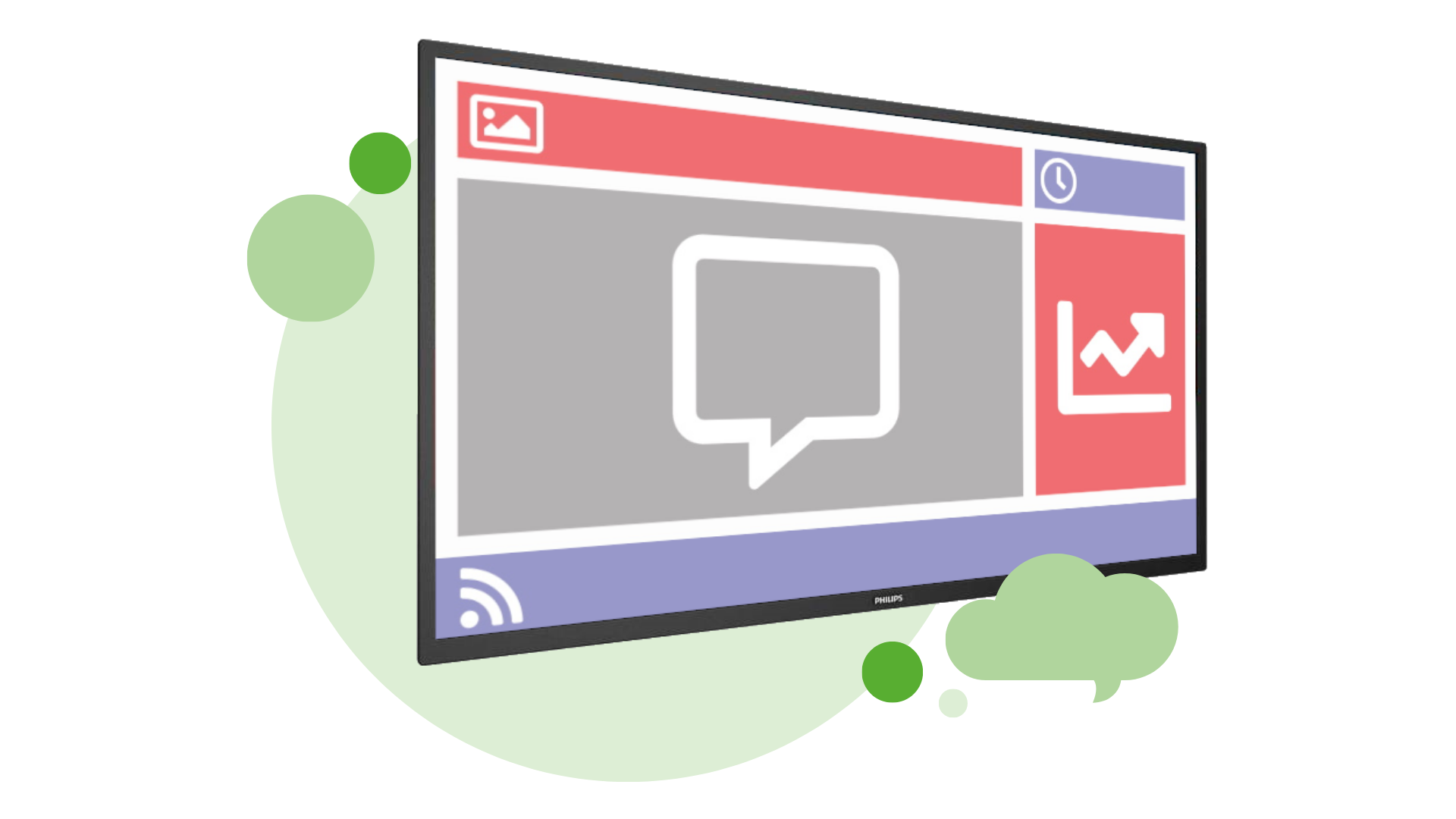
Digital signage is the display of targeted information on one or more digital screens. It is also known as narrowcasting or screen-based communication.
Digital signage allows you to reach a specific target audience in the right place and at the right time. You can use it to inform customers about special offers, keep patients updated on waiting times, help visitors find their way or engage employees with your organisation.
Digital signage is suitable for a wide range of sectors. It gives you a valuable communication channel that helps increase engagement among your target audience. Do you need some inspiration or examples? Visit our blog page or industries page.
What can digital signage do?
Inform, inspire and engage your target audienceWith a digital signage broadcast, you can present information in an attractive and professional way. Use it to:
- welcome visitors and help them find their way
- inform customers about products and special offers
- introduce your team to patients or display current waiting times
- keep employees informed and increase their engagement with your organisation
- display up-to-date timetable information for pupils and students
- display results, statistics and other business information
This makes digital signage suitable for a wide range of organisations and industries. Take a look at our industry-specific examples.
Examples per industry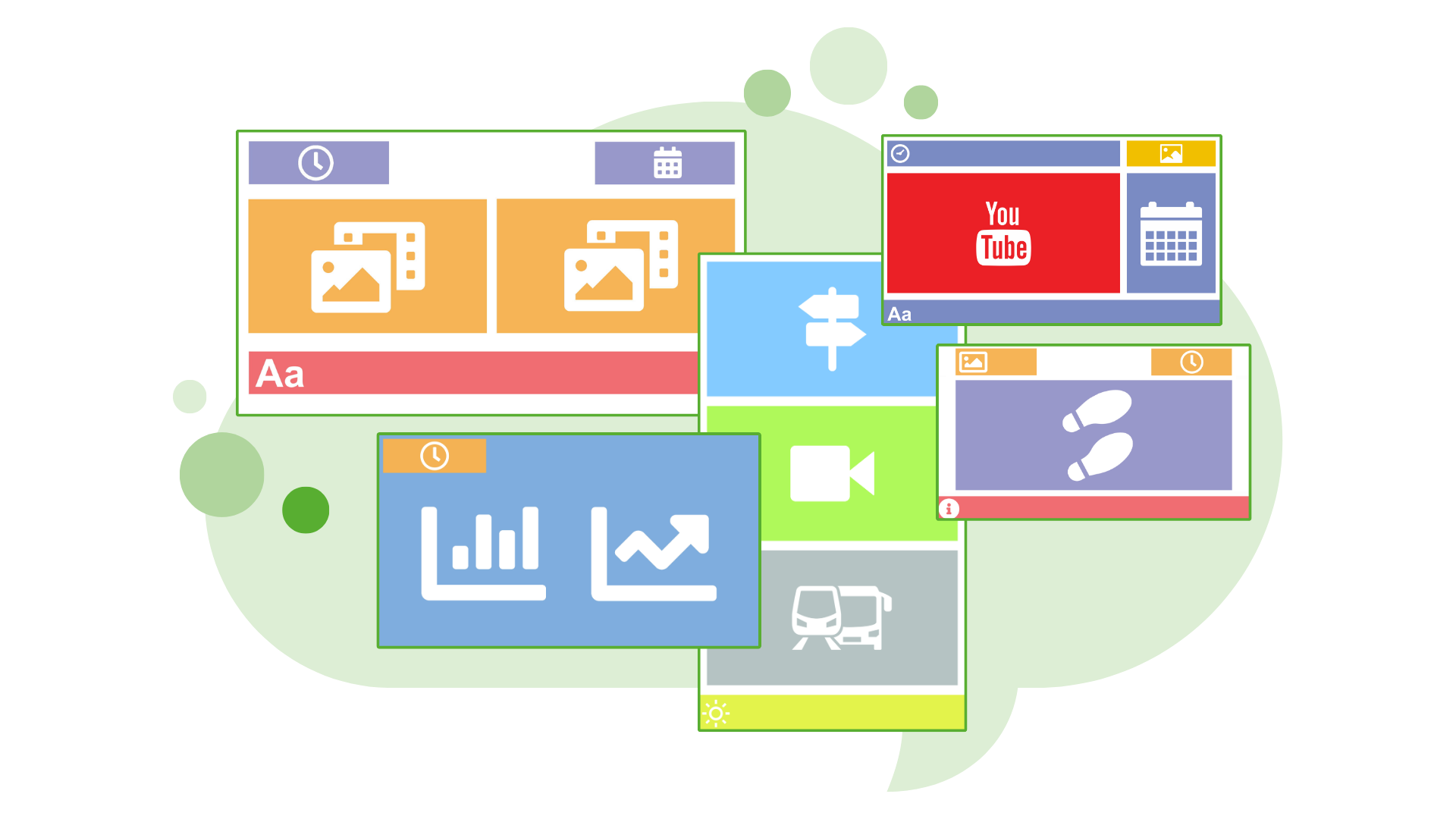
Why choose Opensignage?
Professional and reliableWith Opensignage, you have a professional and reliable digital signage system that grows with your organisation. Easily add extra players and screens to the management portal. Your broadcasts can be managed centrally or locally, making Opensignage suitable for both small organisations and larger organisations with extensive screen networks.
You can choose to install the Opensignage software on your own players. Prefer a ready-to-use solution? That’s possible too. Opensignage also supplies fully prepared plug-and-play players.
The software is continuously developed and updated, so you can rely on a secure and stable solution. Managing your broadcasts is simple: you don’t need any technical knowledge to create a professional broadcast. The media library also contains a wide range of media files suitable for many different industries.
Online management environment
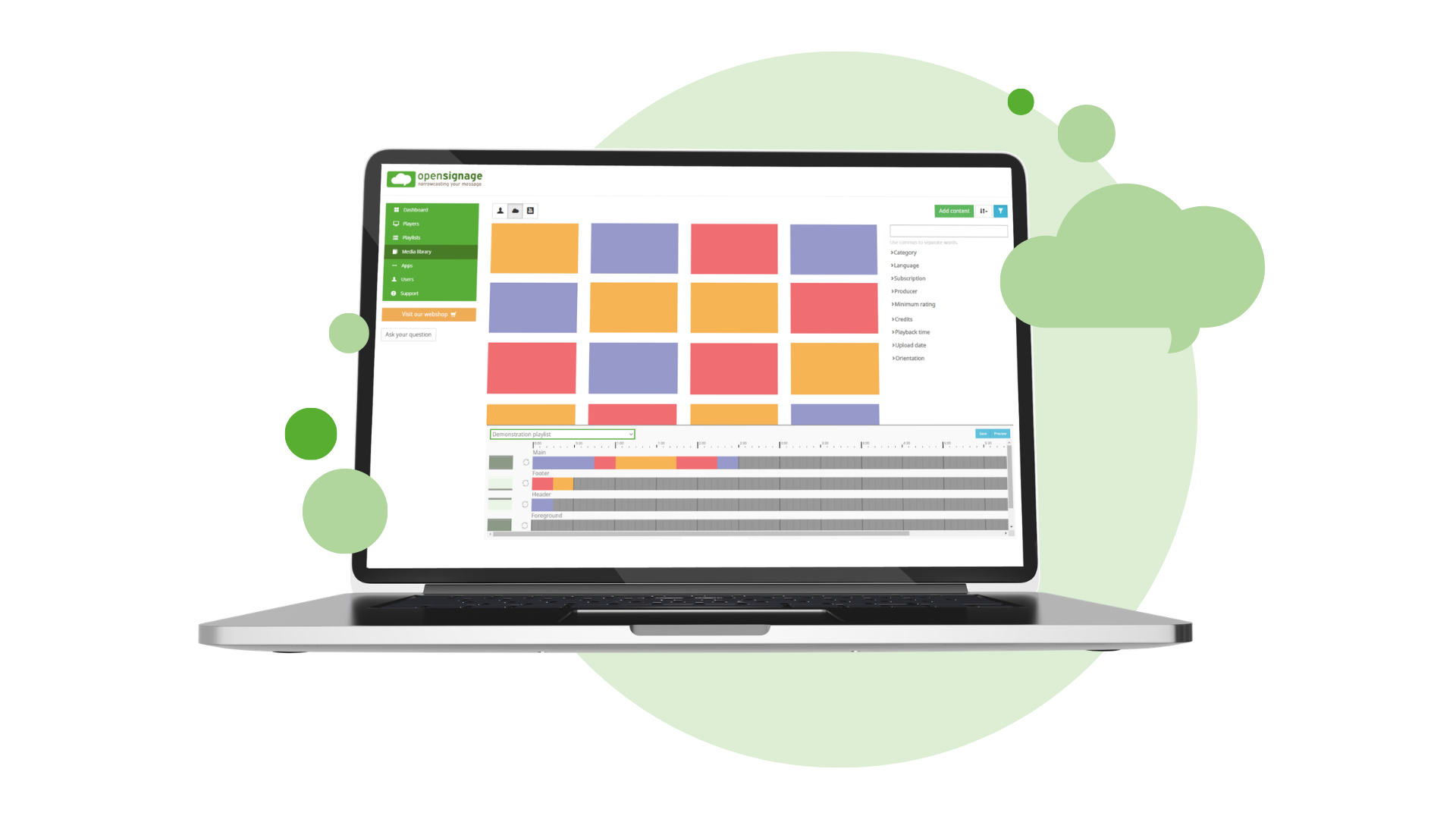
Easily create your own digital signage broadcastIn the online management environment, also known as CMS (Content Management System), you create and manage your broadcast. You can log in from any computer with an internet connection.
First, create a playlist and choose a screen layout. This determines whether your information is displayed full-screen or in different sections of the screen. Then add media files by dragging them to the right place in your playlist.
Next, use the scheduling options to determine on which days, at what times and on which players and screens the broadcast is displayed. This allows you to display the right information to each target audience at the right time.
The management portal also includes a range of manuals and explainer videos, helping you quickly become familiar with how Opensignage works.
Would you like advice or a tailored quote?
You can manage Opensignage entirely yourself or leave more of the work to us.Our digital signage experts can take care of the setup and support you where needed.
Contact us for advice and a tailored quote.
4 easy steps to start with Opensignage
Create an account
Create an account. Get 5,000 free credits to try everything out.Install software
Download our free software on your own device, or buy a player.Connect the player
Simply connect the player to a display and link the player to the Internet.Start narrowcasting!
Creating your playlists is easy and user-friendly in the online CMS.Frequently asked questions about Opensignage digital signage
Yes, you can broadcast in either 4K or Ultra HD. By default, 4K files are reset to Full HD (1920 x 1080 px). If you’d prefer to keep the 4K resolution, you can do so by taking out a special 4K subscription. Our sales department will be more than happy to help you.
With Opensignage you can show camera footage from live streams (MJPEG). You simply add the stream to the Streams app, and additionally use the Streams widget in order to display the images. It’s currently not possible to add a secured web link or a live stream from YouTube.
Unfortunately, this is not possible due to copyright restrictions imposed by the creators of the videos. However, you can add your own videos. You can do this in the media library by clicking on the Add content button.
Opensignage works by you connecting a player, via HDMI, to the screen – and voila, your digital signage broadcast is displayed. But, as long as you have a screen to which connects to COAX - or if you have an additional HDMI port - you can easily switch to a TV channel. (In that event, it’s on you to arrange your own subscription with a TV provider!) You can switch easily between displaying signage and watching TV using the remote control. (Usually this goes via the INPUT or SOURCE button on the remote control.)
In the online management environment (CMS), go to Support and click Manuals. You will then be redirected to our online support page, where you can find all available manuals.
This is possible via an HDMI splitter, signal distribution or multicast. Choosing one of these options depends on the distance between the different screens you need to cross so that the video quality does not deteriorate. If you choose one of these options, the same broadcast will be displayed on all screens.
Would you prefer to be flexible and show different broadcasts on your various screens? Then we’d recommend you connect a player to each screen. If you have any questions, please contact our sales department via the contactform. They’re always happy to help!
Yes, you can absolutely create a video wall with multiple screens in landscape. Our sales department will be more than happy to help.
Of course you can! There is a dedicated screen layout developed for this very purpose, called 'Tower'. Please also ensure you’ve set up your player correctly for portrait. If you have an Opensignage player, our support department will be delighted to help you with any little queries you may have. Send them a message via the contactform.
If you’re using a player and a screen with an RS232 connection, you can automatically turn the screen on and off. All Opensignage players and screens have an RS232 connection as standard, so if you’re using our dedicated players and screens, this should never pose a problem! If you specify how big the screen can be (the size in inches), our sales department will be happy to make you a customised offer. Please contact us via the contactform.
In the Opensignage CMS, you first add the players and screens. Then you’re able to set a 'Command' for turning your screen on and off. Please note that any playlist you’ve already got scheduled on your player, will continue to play as normal. This isn’t a problem if you’re using a subscription, as you have unlimited use of the media files covered by your subscription. However, if you’re working with credits, you will need to ensure that you modify your schedule, otherwise credits will still be debited from your balance even though your screen is switched off.
You can log in from any computer with an internet connection at cms.opensignage.com.
Do you not have an account yet? You can create one using the link on the login page. You will immediately receive 5,000 credits to try Opensignage free of charge.
Yes. You can find them in the online management environment (CMS) under Support. Click Manuals and you will be redirected to our online support page, where all available manuals can be found.
Opensignage lets you add your own images and videos to your personal library. You’ll achieve the best results if you add an image (JPG, JPEG, BMP, GIF or PNG) of 72 DPI. Please note - you can’t add a PDF file because this is not an image.
For videos, you’ll get optimal results if you add videos (MP4, MOV, WMV, MPEG, MPG, MKV or M4V) in 1080p resolution.
It’s possible to add 4K videos, but different conditions will apply. For more information, please contact our sales department via the contactform. They’ll be happy to help out!
The maximum file size you can add is 500 MB. File uploading is subject to a fair-use policy and you can use a maximum of 2GB of storage per player. Do you need more storage? Our sales-team would be happy to assist you!
The sky’s the limit! The number of players and playlists you may add to the Opensignage management environment is unlimited!
Opensignage has the advantage that you can manage all of your digital signage broadcasts centrally, as well as de-centrally. This is incredibly useful if you use digital signage in a large organization and you want to add organization-wide content - but also want to give each department or location the opportunity to add specific content to personalise its own broadcast.
It’s also perfect if you want to give your customers their own management environment as a dealer or service organization.
In the Opensignage CMS you can arrange this easily by setting selected rights per individual user group. On our support page in the CMS you’ll find a manual.
In the Opensignage media library, you can filter by Credits. Set the filter to 0 credits to view all media files that are available for free.