

 English
  Nederlands
 Opensignage digital signage players
Fully prepared and optimized players for professional digital signage
At Opensignage, you can use your own player or purchase one from the Opensignage webshop. Opensignage players come with our digital signage software already installed, so they are ready to use straight away. Simply connect your player and get started: no technical hassle!
New generation players
Fast, compact, equipped with the latest operating system.
Connect via HDMI
Suitable for virtually all displays.
Plug & Play
Easy to connect to virtually any network.
Minimal data traffic
Via Smart Sync only new and changed content is downloaded.
Support
Remote monitoring and technical support.
Warranty
All players come with a 2-year carry-in warranty.
Technical specifications
All technical specifications of the Opensignage digital signage player
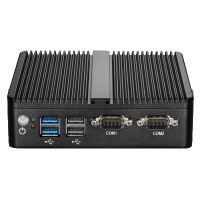
|
|
|---|---|
| Model | BETTER |
| SKU | EV8-WP-BTR6 |
| Operating system | Windows 11 |
| Resolution | Full-HD (1080p) |
| HDMI/DisplayPort | 2x HDMI/1x Display |
| Ethernet | Yes |
| WiFi | Yes |
| Storage capacity | 64GB SSD |
| Remote support | Yes |
| Auto boot | Yes |
| Touchscreen support | Yes |
| Display control | 2x RS232 |
| Cooling | Passive |
| Power consumption | 15W (max.) |
| Price | €499 |
Why choose an Opensignage player?
No hassle with a fully prepared digital signage player
Want to get started straight away without having to install software yourself or find suitable hardware? Choose an plug-and-play Opensignage player. This compact and reliable player is fully prepared and optimised for digital signage. The Opensignage software is already installed: simply connect the player to your screen and internet and you are ready to go.
We can also monitor and support the player remotely if needed. This gives you a professional solution without any technical hassle.
Do you have more questions about our players? Check out the frequently asked questions or contact our sales team.
4 easy steps to start with Opensignage
Create an account
Create an account. Get 5,000 free credits to try everything out.Install software
Download our free software on your own device, or buy a player.Connect the player
Simply connect the player to a display and link the player to the Internet.Start narrowcasting!
Creating your playlists is easy and user-friendly in the online CMS.Frequently asked questions about digital signage players
A digital signage player is a small computer with the Opensignage software installed. You need a player to display your playlists on a screen.
Connect your player to the power supply and the internet, either via a wired connection or Wi-Fi. Then connect the player to your screen using an HDMI cable. Switch on the player and the screen. An activation code will appear on the screen.
Log in to the online management environment at cms.opensignage.com. Go to Players and click Activate a player. Enter the activation code and click Activate.
You can manage one or more players through the online management environment at cms.opensignage.com. Go to Players to view and manage your players. You can also find various guides on managing players on the support page in the management environment.
If your player has a built-in WiFi module, then of course you can connect the player via WiFi! On the support page in the Opensignage CMS, you’ll find a manual.
The specifications of the Opensignage players indicate whether or not a WiFi module has been built in. But what if one doesn’t?! No stress! You can buy the corresponding WiFi module in our dedicated web shop! And if you purchase your WiFi module at the same time as purchasing an Opensignage player – we’ll install the WiFi module for you free of charge!
In the online management portal, you can use the scheduling options to decide which playlist is displayed on each player. To set up a schedule, go to Playlists in the online management environment (CMS) and click Scheduler.
All Opensignage players come with the latest version of Microsoft Windows.
You can buy an Opensignage player through our webshop. Prefer to speak directly to one of our sales team? Get in touch using the contact form.
The price of the Opensignage player excludes VAT. The applicable VAT amount will be calculated for you in the webshop.
Yes, we can take care of the entire installation for you. But our installation service is only available on-site in The Netherlands and Belgium. Our sales team will be happy to prepare a quotation for you. Get in touch using the contact form.
Yes, you can. With the free broadcast option, you can display text messages, the date and time and a news feed. Want more options? Purchase credits (pay-per-play) or take out a cost-effective subscription. You can find more information on the Pricing page.
If you only want to use the free content in the media library, you don’t need a subscription! If you decide you want to add your own content too (e.g. your company logo) or use paid content(e.g. widgets), you can pay via credits or a with a subscription. Paid media files can be recognised by the credits icon in the top right corner. Both credits and subscriptions are charged on a ‘per player’ basis.
No, you
don’t. You can display text messages, the date and time, and a news feed for
free.
Want more options? Then a subscription may be a good choice. We offer
several different subscriptions, so there is always an option to suit your
needs. You can find more information about subscriptions on the Pricing page.
Unfortunately, our digital signage players do not support HDMI-CEC to control the on/off status of a connected screen. However, our players do offer the option to control this via RS232. A separate FAQ about automatically turing on/off screens is available at 'screens'.
Your own player (or mini-computer) must run at least Windows 11. In addition, your player has at least 4GB of working memory and at least 3GB of free storage space. In addition, your player must be able to connect to the Internet.
The screen is the display on which your playlist is shown. You need a player to display that playlist. The player connects your screen to the online management environment (CMS) and ensures that your content is displayed.